.svg)

Connecting Segment to Amplitude lets you route all your customer event data from a single source of truth directly into Amplitude for product analytics, without implementing Amplitude's SDK separately across every platform. Instead of tracking events in multiple places, you track once in Segment and send to Amplitude alongside every other destination in your stack. This guide covers how the integration works, how to set it up correctly, and what to watch out for to make sure your data arrives clean and usable.
Most product and growth teams reach a point where managing event tracking across multiple tools becomes unsustainable.
Your web app has one SDK. Your mobile app has another. Your backend has a third. Each tool requires its own implementation, its own event naming decisions, and its own maintenance burden when something changes. The result is fragmented data, inconsistent naming across platforms, and an analytics setup that takes weeks to debug whenever something breaks.
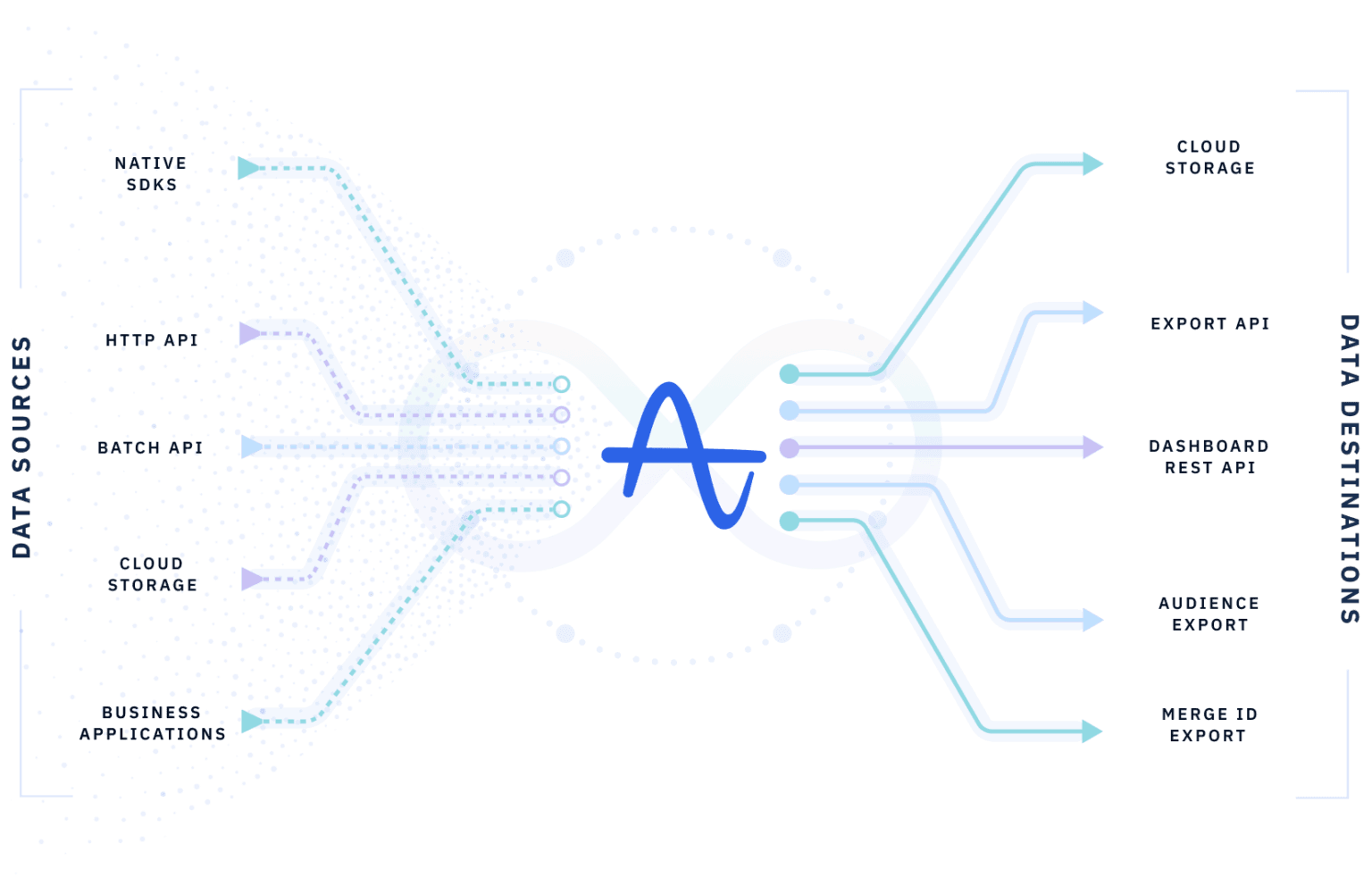
Segment solves this by acting as a single collection layer. You instrument events once, in one place, and Segment routes them to every destination in your stack: Amplitude, your CRM, your data warehouse, your email tool simultaneously. Adding Amplitude to your Segment workspace takes minutes. Getting it right takes a bit more care.
Here is everything you need to know.
How the Amplitude and Segment Integration Works
Segment is a Customer Data Platform (CDP), it collects event data from your website, mobile apps, and backend systems and forwards it to your connected destinations. Amplitude is one of those destinations.
When you connect Amplitude to Segment, every track, identify, and page call you make through Segment's SDK gets forwarded to Amplitude in real time. Segment translates its own event schema into Amplitude's expected format automatically like event names, user properties, and timestamps all map across without custom transformation work on your end.
This means your Amplitude implementation inherits the quality of your Segment implementation. Clean, consistent Segment data produces clean, consistent Amplitude data. Messy Segment data withinconsistent naming, missing properties, incorrect user identification produces messy Amplitude data. The integration does not fix upstream problems. It forwards them.
Step 1: Add Amplitude as a Destination in Segment
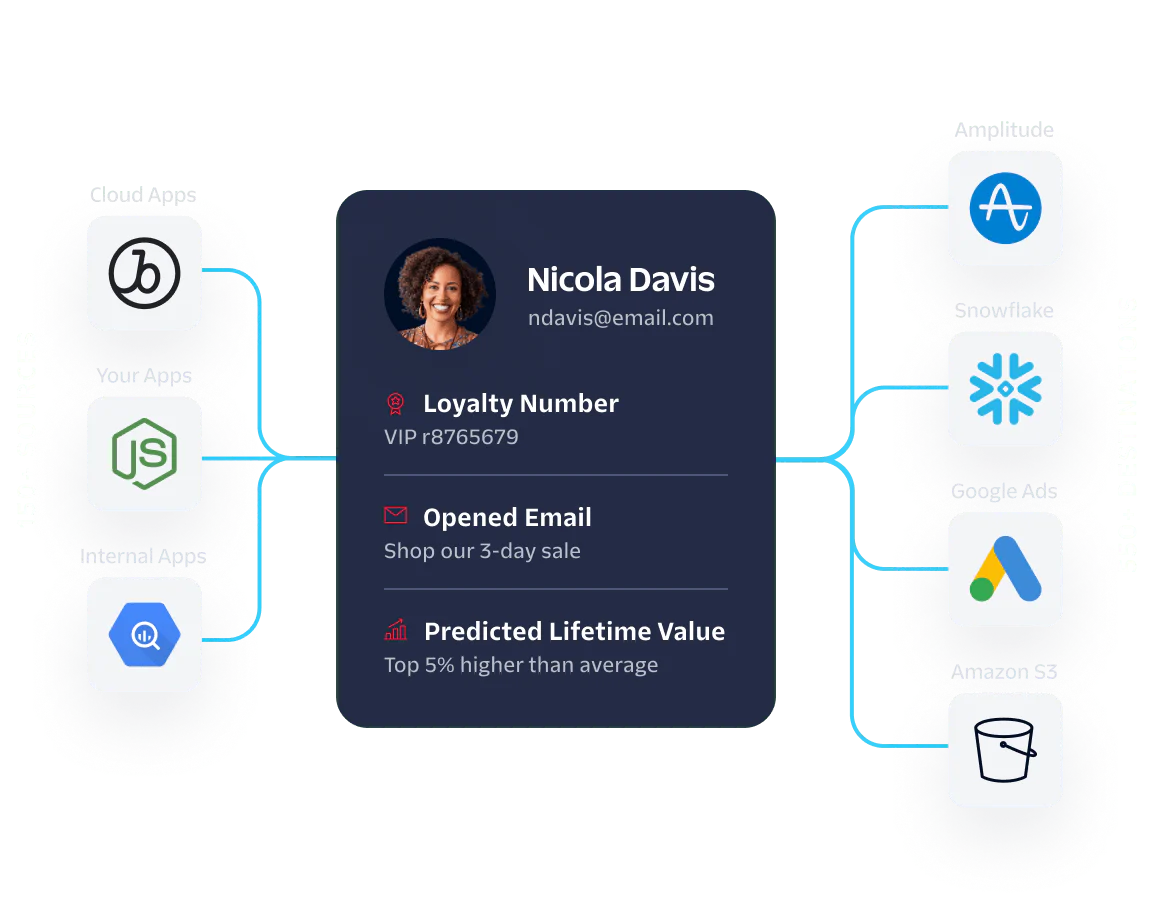
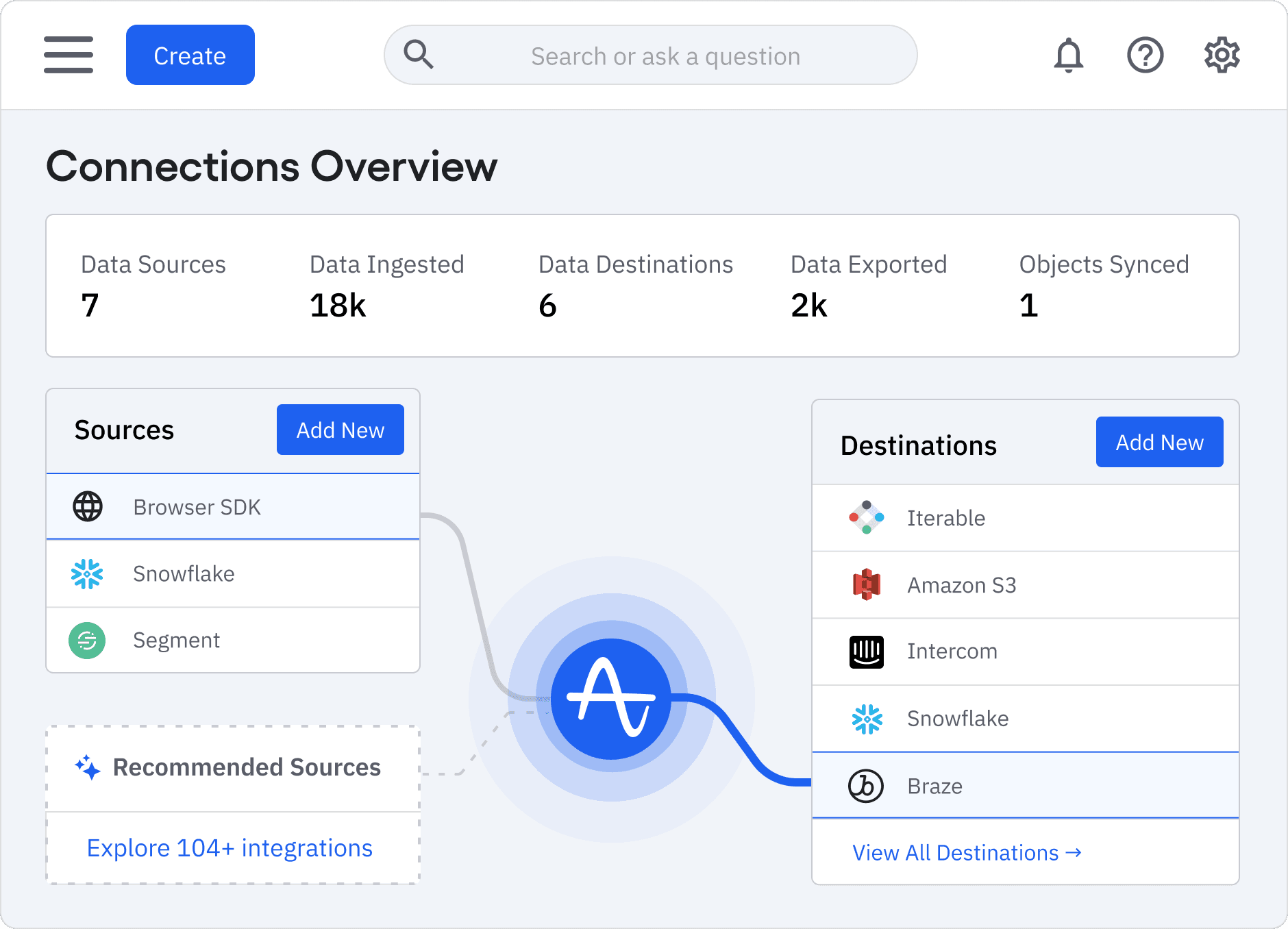
Start in your Segment workspace. Navigate to Connections, then Destinations, and search for Amplitude. Select the Amplitude destination and click Add Destination.
You will be asked to connect a Segment source -- the website, mobile app, or server-side source whose events you want to send to Amplitude. If you have multiple sources, you can connect each one to Amplitude separately, giving you control over which events from which platforms reach Amplitude.
You will need your Amplitude API key to complete the connection. Find this in your Amplitude project settings under API Keys. Paste it into the Segment destination configuration and save.
At this point the basic connection is live. Events flowing through your connected Segment source will start appearing in Amplitude's event stream within a few minutes.
Step 2: Configure the Destination Settings
The default Amplitude destination settings in Segment work for basic implementations but there are several configuration options worth reviewing before going live.
Enable session tracking. Segment does not automatically send session information to Amplitude. Enable the Use Session ID option in the destination settings if you want Amplitude to track sessions correctly. Without this, all events will appear as part of a single continuous session.
Map Segment traits to Amplitude user properties. When you call identify in Segment, the traits you pass, name, email, plan type, company need to be correctly mapped to Amplitude user properties. Review the trait mapping settings in the destination configuration to confirm they align with how you have structured user properties in Amplitude.
Configure event filtering. If you have events in Segment that are relevant for other destinations but not for Amplitude, internal admin events, server-side health checks, raw clickstream data -- filter them out at the destination level. Sending irrelevant events to Amplitude inflates your Monthly Tracked Users count and pollutes your event taxonomy.
Step 3: Verify User Identity Is Being Resolved Correctly
Identity resolution is the most critical and most commonly misconfigured aspect of the Amplitude Segment integration.
Amplitude uses two identifiers to track users: the Amplitude Device ID (for anonymous users) and the Amplitude User ID (for identified users). Segment maps its own anonymousId to Amplitude's Device ID and its userId to Amplitude's User ID.
The problem arises at the moment of user identification -- when an anonymous visitor signs up or logs in and becomes a known user. For Amplitude to correctly merge the anonymous session with the identified user profile, the identify call in Segment must fire at exactly the right moment, with the correct userId, immediately after the user authenticates.
If this is misconfigured, Amplitude creates separate user profiles for the anonymous and identified states -- inflating your user count and breaking any analysis that depends on seeing the full user journey from first visit to conversion.
Verify identity resolution is working correctly by signing up as a test user, completing the identification flow, and then checking your Amplitude user profile. You should see a single user profile with both anonymous events (before sign up) and identified events (after sign up) in the same timeline.
Step 4: Validate Events Are Arriving Correctly
Once the integration is live, do not assume it is working correctly -- validate it.
In Amplitude, navigate to the Event Stream (or use the Data section) and check that events are appearing with the correct names, timestamps, and properties. Cross-reference a sample of events against what you would expect based on your Segment implementation.
Key things to check: event names match your expected naming convention, user properties are populating correctly on identified events, the identify call is firing at the right point in the user journey, anonymous events before sign-up are being merged correctly with the identified profile, and no unexpected events are appearing that should have been filtered.
If you find discrepancies, the most common causes are event filtering not configured correctly, trait mapping incorrect for specific user properties, or the identify call firing too late or too early in the authentication flow.
Step 5: Test Across All Your Sources
If you have multiple Segment sources connected to Amplitude -- web, iOS, Android, server-side -- validate each one separately. A configuration that works correctly for your web source may have different behaviour on mobile due to differences in how Segment's mobile SDKs handle anonymous IDs and session tracking.
Pay particular attention to cross-platform identity resolution. A user who first visits on mobile and later signs up on web should be recognised as the same user in Amplitude. This requires consistent userId values across platforms and correct identify calls on each.
Common Issues With the Amplitude Segment Integration
Duplicate user profiles. Almost always caused by identify calls firing inconsistently or the userId value changing between sessions. Check that your userId is a stable, permanent identifier -- not an email address that could change, or a session token that resets.
Missing user properties. Segment traits are not automatically forwarded to Amplitude as user properties in all configurations. Check your trait mapping settings in the destination configuration and verify that the properties you need for segmentation and analysis are correctly mapped.
Inflated event counts. Usually caused by server-side events being sent to Amplitude that should have been filtered. Review your event filtering settings and exclude any events that are not relevant for product analytics.
Session tracking not working. Amplitude sessions require the Use Session ID option to be enabled in the Segment destination settings. Without it, Amplitude cannot correctly identify session boundaries and all events appear as a single continuous session.
Events arriving without context. If events are arriving in Amplitude without the user properties you expect, check whether your identify calls are firing before or after the events in question. User properties are only attached to events that fire after the identify call has been processed.
For teams also connecting a data warehouse to Amplitude alongside Segment, the Snowflake to Amplitude integration guide covers the additional setup required to route warehouse data into Amplitude for historical backfill and custom event pipelines.
Also using BigQuery with Amplitude?
If you are sending data from BigQuery into Amplitude alongside your Segment integration for historical event backfill or custom data pipelines, this video walks through the full setup in minutes.
Want help setting up your Amplitude and Segment integration correctly?
Getting identity resolution, event filtering, and user property mapping right from the start saves weeks of debugging later. Book a free call and we will review your setup.
FAQ
How do I connect Segment to Amplitude?
In your Segment workspace, navigate to Connections, then Destinations, search for Amplitude, and click Add Destination. Select the source you want to connect, enter your Amplitude API key from your Amplitude project settings, and save. Events from your connected source will start appearing in Amplitude within minutes.
Does Segment automatically map events to Amplitude?
Yes -- Segment automatically translates its track, identify, and page calls into Amplitude's expected format. Event names, timestamps, and user identifiers map across automatically. User traits from identify calls need to be reviewed in the destination configuration to confirm they are correctly mapping to your intended Amplitude user properties.
Why are my Amplitude users showing as duplicates after connecting Segment?
Duplicate user profiles in Amplitude almost always come from incorrect identity resolution -- typically the identify call firing at the wrong point in the authentication flow, or the userId value being inconsistent across sessions. Verify that your identify call fires immediately after user authentication with a stable, permanent userId value.
Does the Segment Amplitude integration support mobile apps?
Yes. Segment's iOS and Android SDKs both support Amplitude as a destination. Mobile implementations require additional attention to session tracking configuration and cross-platform identity resolution -- ensuring users who interact across both web and mobile are recognised as the same user in Amplitude.
How do I filter events in Segment before they reach Amplitude?
In the Amplitude destination settings within Segment, use the event filtering options to block specific events from being forwarded. This is useful for excluding internal admin events, server-side health checks, or high-volume raw events that are relevant for other destinations but not for product analytics in Amplitude.
What is the difference between Segment and Amplitude?
Segment is a Customer Data Platform (CDP) -- it collects event data from your product and routes it to multiple destinations simultaneously. Amplitude is a product analytics platform -- it analyses that event data to surface insights about user behaviour, retention, and conversion. Segment is the collection and routing layer. Amplitude is the analysis layer. They are complementary tools, not alternatives.

.png)