.svg)

📺 Amplitude Guides & Surveys: How to Set Up Your First Guide and Survey
In the video above, I walk through Amplitude Guides & Surveys end to end in about 10 minutes — what the three components are, when to use each, and live setup of a guide and a survey. This article is the written companion, so you can follow along or use it as a reference. If you learn faster by watching, start with the video and come back for the steps.
The short version: To set up Amplitude Guides & Surveys, pick the component you need — a resource center (a persistent in-app help widget), a guide (a step-by-step walkthrough or announcement), or a survey (a targeted question) — then design its content, choose a UI style (modal, popover, or pin), and set the targeting and trigger logic that decides who sees it and when. You target by event, cohort, or page, and add a frequency cap so it shows only as often as you want. Hit publish and it goes live to matching users. One caveat: Guides & Surveys isn't on Amplitude's free tier, so check your plan first.
The three components, quickly
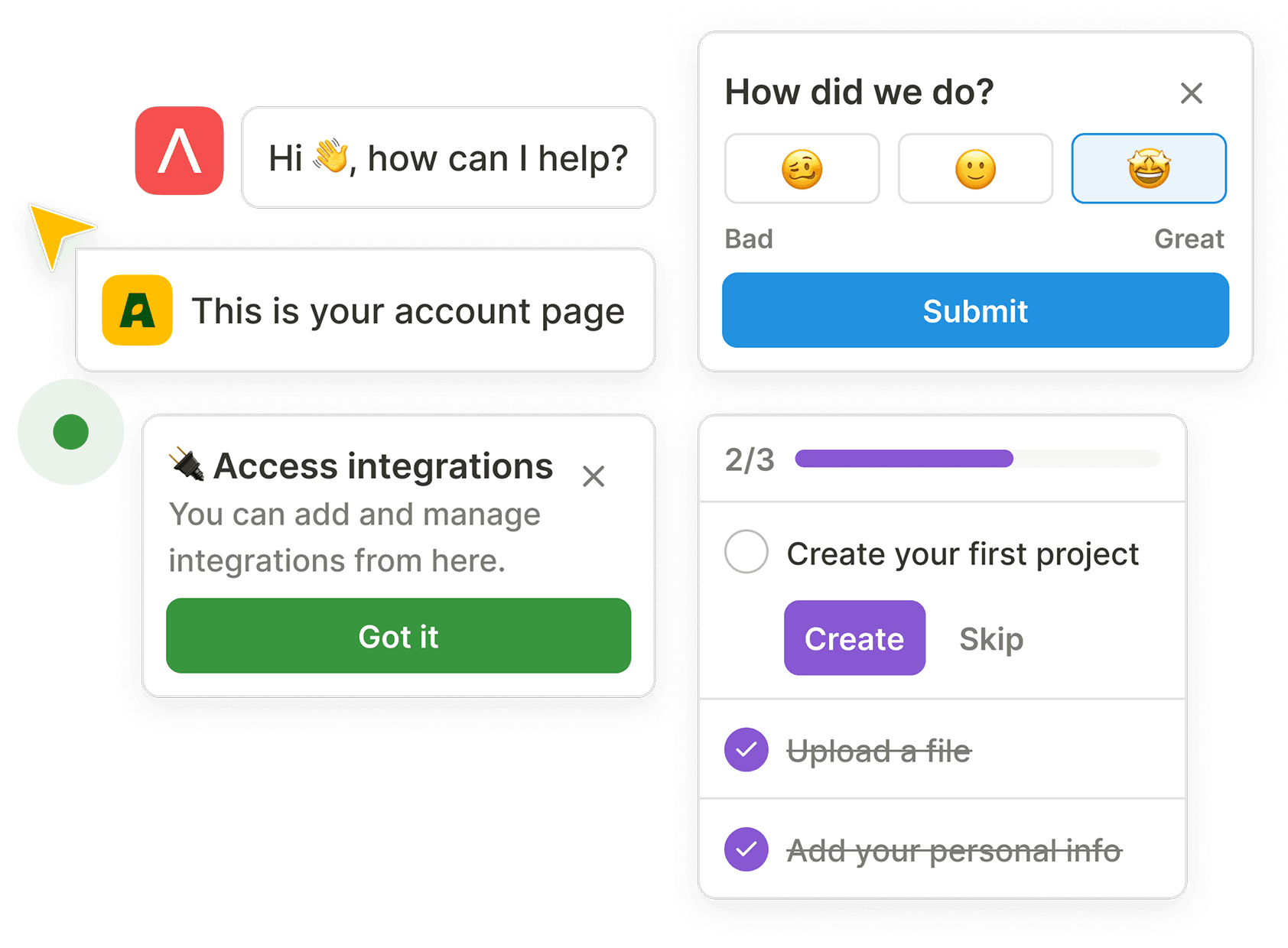
Amplitude Guides & Surveys is really three tools that share the same setup logic:
- Resource centers — a persistent help widget that sits in your app so users can open it any time for help, announcements, or tutorials.
- Guides — step-by-step walkthroughs or announcements triggered by user behavior (e.g. "Welcome — here's how to create your first project").
- Surveys — quick, targeted questions tied to specific events (e.g. asking users who just cancelled why they cancelled).
The real power across all three is the trigger logic and targeting — you decide exactly when each one appears and who sees it. Everything below comes back to that.
Before you start
Two things to have ready: confirm you're on a plan that includes Guides & Surveys (it's not on the free tier), and know roughly which cohort or event should trigger your message — because that targeting is what makes it feel timely instead of spammy. If your cohorts aren't set up yet, our primer on cohort analysis is a good starting point.
How to set up a guide (feature announcement)
Using a feature-announcement guide as the example:
- Start from a template or blank. Amplitude ships templates for tours, announcements, checklists, banners, and tooltips — pick one close to your use case or start blank.
- Choose the UI style. Modal, popover, or pin. A modal appears center-screen and is best for big announcements you don't want missed; popovers and pins attach to specific elements for subtler nudges.
- Design the content. Add your title and body ("Welcome to your new dashboard — here's what's new"), and add images or video — interactive guides land better, so I genuinely recommend it.
- Set the CTA action. Give the button a job: "Got it" set to dismiss (the guide dissolves), or "Learn more" set to an action — a CSS selector, a next path, or a visit link to a specific page URL (e.g. the new dashboard).
- Set targeting. Choose all users or a specific cohort (e.g. active-in-last-7-days) so only the right people see it.
- Set the trigger. Decide when it fires — commonly on an event (e.g. when
Dashboard Viewedis tracked) and/or on a specific page (the dashboard URL). - Cap the frequency. Set it to show once (after one occurrence) so you're not nagging users.
- Publish. Next time a matching user hits that trigger, they'll see it.
How to set up a survey (cart abandonment)
Surveys use the same block-based builder, so once you've built a guide this is familiar:
- Create the survey from a template (user feedback rating, NPS, banner) or from scratch.
- Write the question. For a cart-abandonment survey: "What stopped you from completing your purchase?" with a text response.
- Set targeting. All users, or narrow to the people whose feedback matters most — first-time abandoners, or high-value users.
- Set the trigger. Fire it on an event that signals abandonment (e.g. on the checkout page, or when a user cancels checkout).
- Publish. From then on, anyone who abandons checkout sees the survey — you'll start collecting answers within hours.
Surveys are where you learn why the numbers move; pairing them well is the focus of our post on getting actionable user feedback from Amplitude Guides & Surveys.
Setting up a resource center
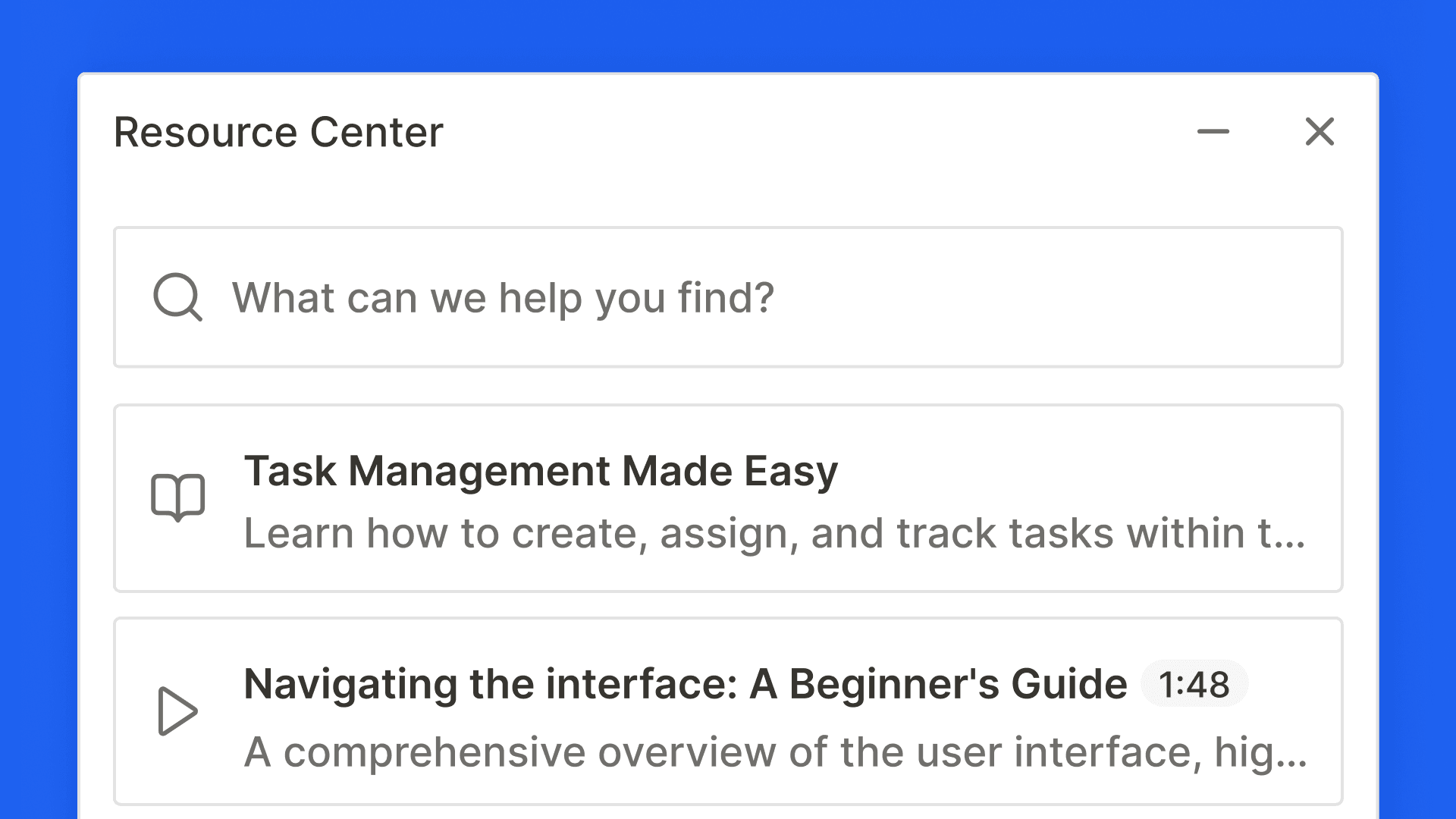
The resource center is the persistent help widget. In the builder you edit blocks and sections much like the others: add your branding (logo, brand colors), then fill the content block with whatever you want users to reach — helpful links, quick actions (visit a link, open a third-party chat, open an article), or embedded guides and surveys so they're always accessible. Articles can be embedded natively, but you configure those under Content first, then call them into the widget. Publish, then set page targeting the same way as guides and surveys.
The real lever: targeting and trigger logic
Everything above shares one engine. You can trigger based on events users complete, cohorts they belong to, or pages they visit — and cohort targeting gets as specific as you like: "users who performed an action more than three times," or "users who activated payment but haven't viewed the dashboard yet." That precision is what makes a message feel relevant and timely instead of intrusive — which is exactly what drives higher response rates and better data.
What to actually use them for
- Guides — educate users on a new feature, nudge them through a drop-off-heavy onboarding step, prompt a key activation action (like connecting a payment account), or step in on rage clicks and confusion to reduce churn and lift retention.
- Surveys — understand drop-offs (checkout abandonment), validate a hypothesis ("would you use dark mode?"), or measure satisfaction with NPS.
- Resource centers — replace scattered docs with one always-available help hub, and announce updates without spamming inboxes.
Want help putting this to work?
Guides and surveys are easy to set up and easy to over-use — the value is in the targeting. If you want help wiring them to the right cohorts and events (and the rest of your Amplitude setup), our Analytics Retainer gives you ongoing hands-on support.
Frequently asked questions
What are Amplitude Guides & Surveys?
They're Amplitude's in-product engagement tools, made up of three components: resource centers (a persistent help widget), guides (behavior-triggered walkthroughs and announcements), and surveys (targeted in-app questions). All three are shown to specific users based on events, cohorts, or pages.
Is Amplitude Guides & Surveys free?
No — it isn't included on Amplitude's free tier. Check which plan you're on before setting it up.
What's the difference between a guide and a survey?
A guide delivers information to the user — a walkthrough, tooltip, or announcement. A survey collects information from the user — a targeted question like why they abandoned checkout. Both use the same targeting and trigger logic.
How do I control who sees a guide or survey?
Through targeting and triggers. You choose a cohort (or all users), then set a trigger — on a specific event, on a page visit, or both — plus a frequency cap so it shows only as often as you want.
What are the UI options for a guide?
Modal, popover, or pin. A modal appears center-screen for announcements you don't want missed; popovers and pins attach to specific elements for lighter-touch nudges.
.png)